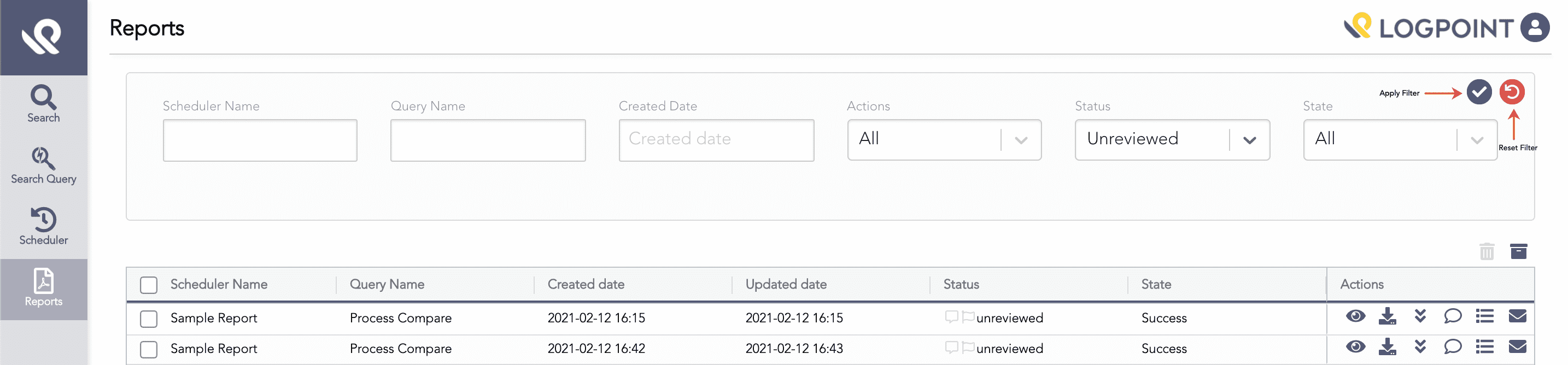
Click Reports in the sidebar to view scheduled reports in a table. You must have the User Access, Patient Access, All Access, Report Access, or Report Admin roles to view or make actions on the reports.
For each report, the table lists the following details:
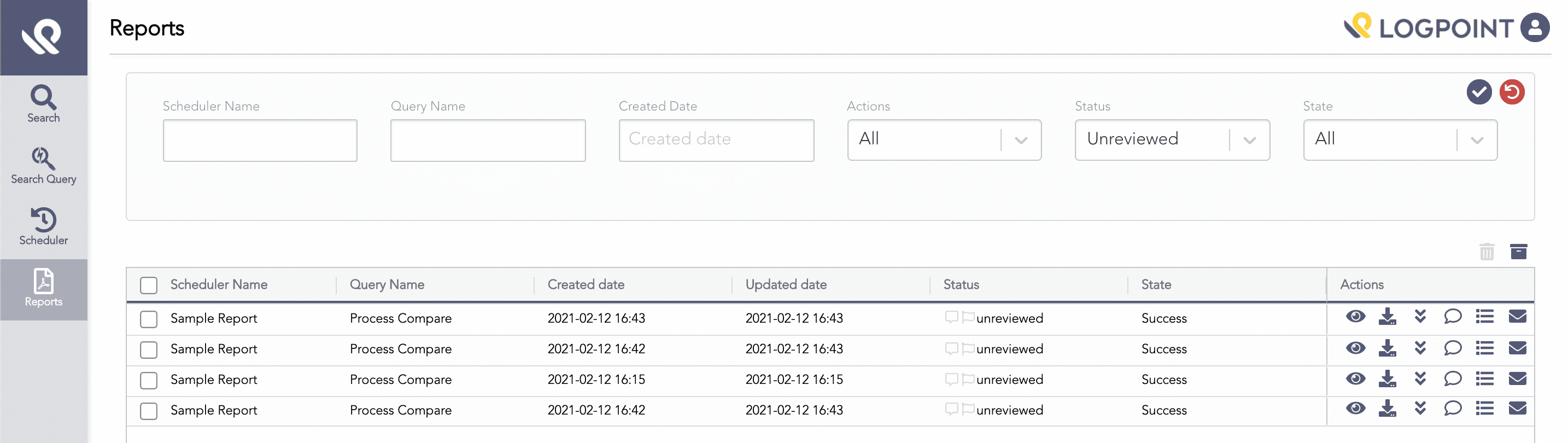
Generated Scheduled Reports
Entity |
Description |
|---|---|
Scheduler Name |
The name of the scheduler used to generate the report. However, for the reports saved from the search results page, the column displays the report name provided by users. |
Query Name |
The predefined search query used in the scheduler. However, for the reports saved from the search results page, the column displays the report name provided by users. |
Created Date |
The report generation date |
Updated Date |
The date of the latest change in the status of the report |
Status |
The status of the report. It can be unreviewed, reviewed, or archived. Additionally, if the report data has any comments or flags, the respective icon in the Status column is enabled, else it is disabled |
State |
The state of the scheduled report. It can be Started, Failed, Partially Success, Interrupted, or Success. The Success state means that the report has complete results from all the used search queries. The Partially Success state means that the report has complete results for one or more used search queries but not all. The Interrupted state means the report has been interfered with during the search process. |
Actions |
The various actions that you can perform on the report. You can view the report, download the report, change the status of the report, comment, or view the actions on the report. |
You can perform the following actions on the generated reports:
Click the View icon to display the report.
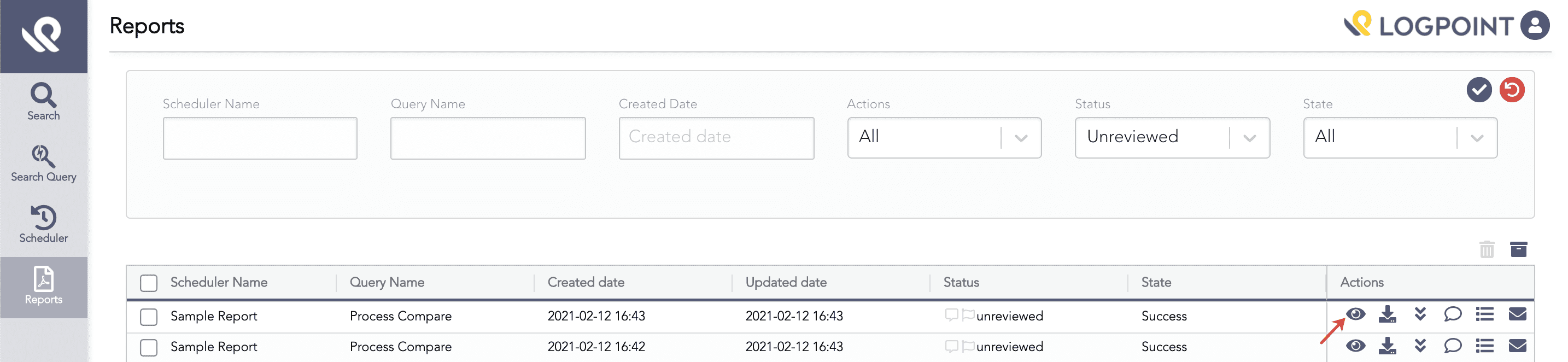
View
The page creates a report for the query selected in the Select Query drop-down menu.
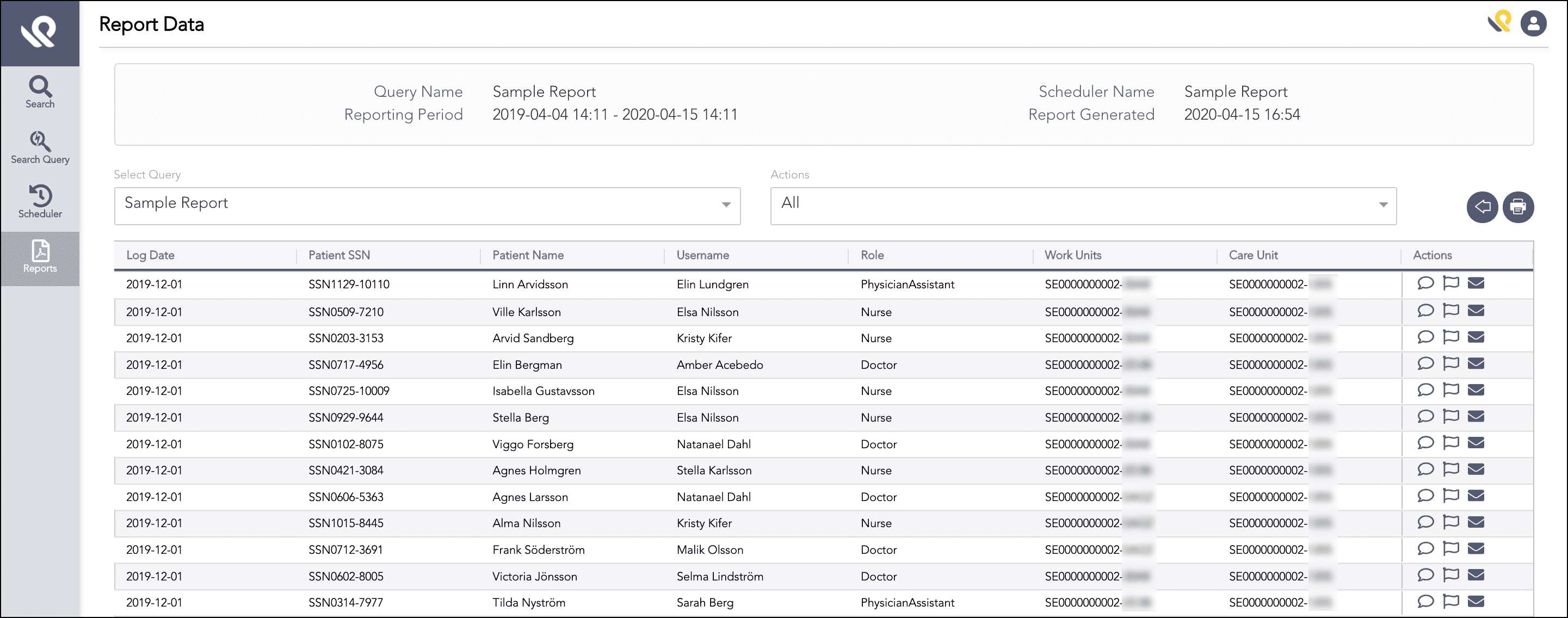
Viewing Report
You can select a filter option from the Actions drop-down to view the commented results, the flagged results, or the commented and flagged results.
You can also comment, flag, and email each row of the report.
To comment on a row, click the Comment icon from the Actions column and enter your comments in the Comment pop-up panel.
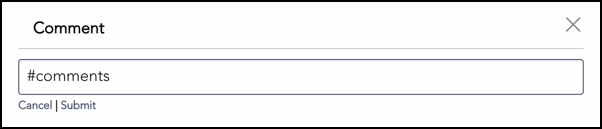
Comment
You can add multiple comments.
To flag a row, click the Flag icon from the Actions column of the corresponding row. You can unflag the row by clicking the Flag icon again.
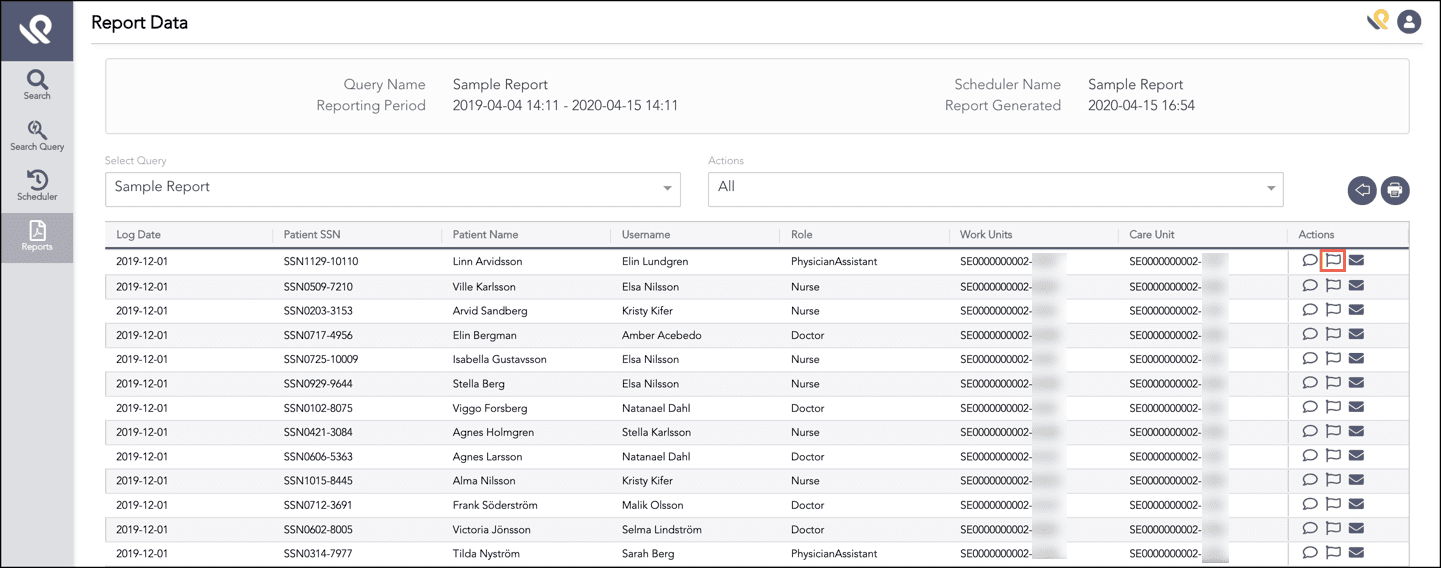
Flag
Click the Send Email icon to send the report link via an email. Clicking the icon opens the email client with the report link. An AAHC user with User, Patient, Report access, or Report admin access can access the report via the link.
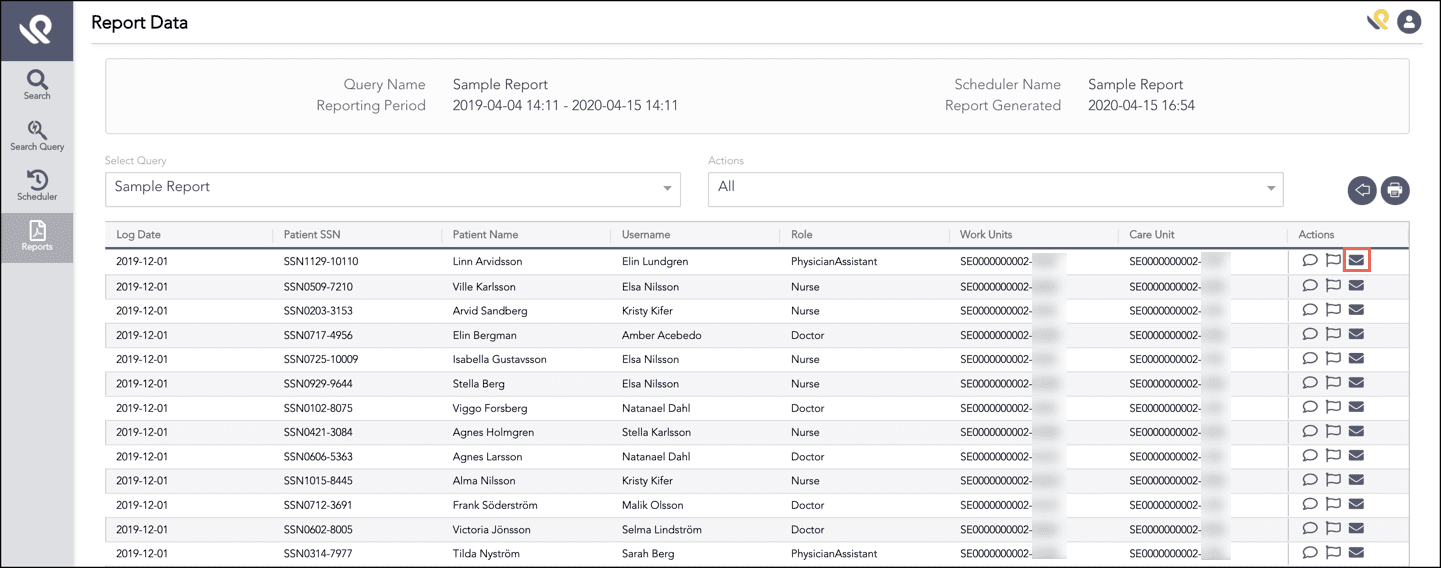
Email an Individual Row
Note
You can download the displayed result or the complete report by clicking the Download icon ( ):
):
Select Download displayed result to download the result of the selected query only.
Select Download complete report to download the results of all the query of a report.
You can click the Back icon ( ) to go to the Reports page.
Click the Download icon to download the report in PDF.
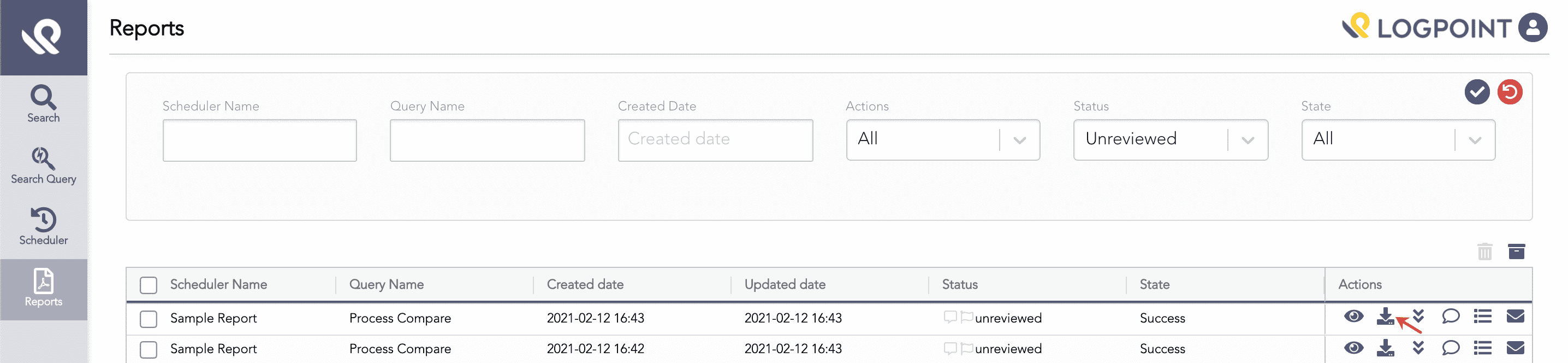
Download
Before downloading, you can choose whether or not to include the comments made to the report data and to the whole report. Select the With Comments option to download the report with comments. Otherwise, select the Without comments option. Similarly, you can choose whether or not to include the queries on the report by enabling or disabling the Include queries on the report? option.
The comments made on a report data are displayed on the corresponding row. However, the comments made on the entire report is displayed on the first page.
If you select to include the queries on the downloaded report, the report includes the queries on the last page.
Click the Status icon to change the status of the reports to Reviewed, Unreviewed, or Archived.
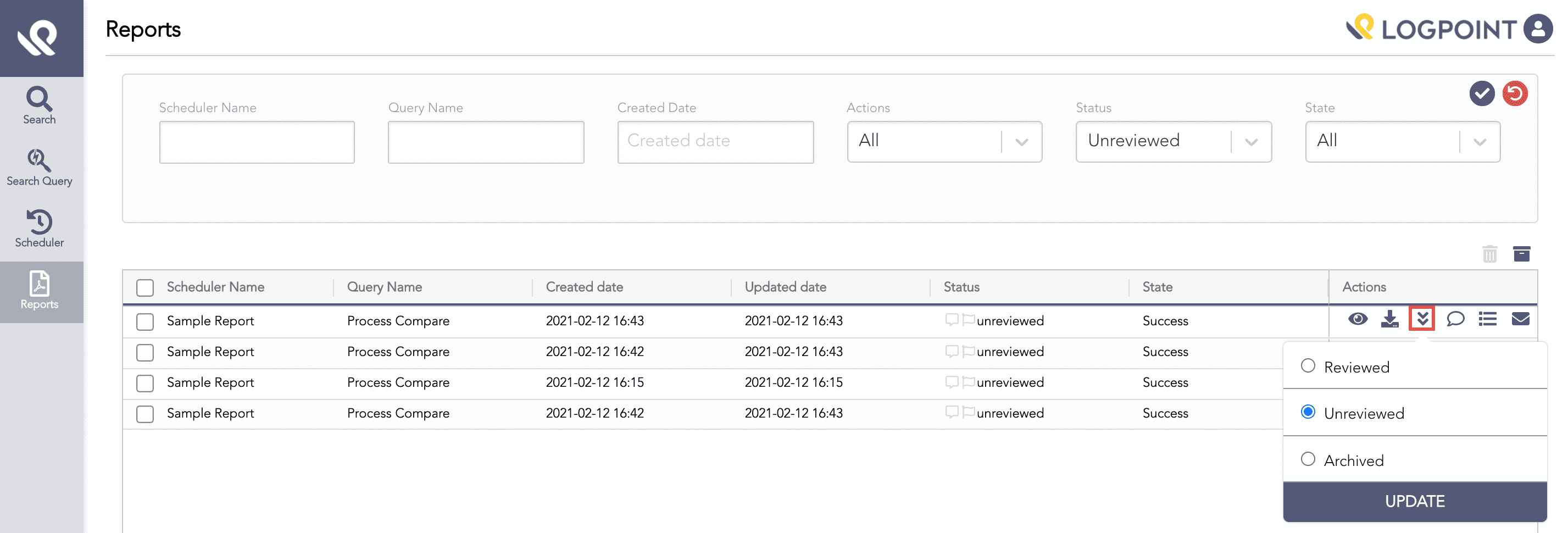
Report Status
By default, the status is Unreviewed.
Click the Comments icon to add a comment on the entire report. You can add multiple comments.
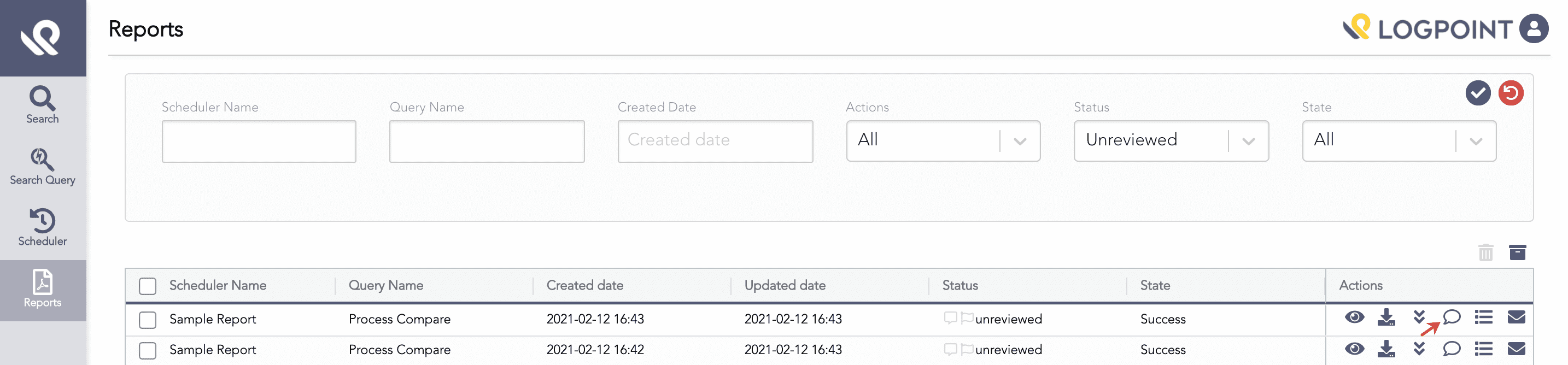
Comments for the report
In Comments, enter your comment and click Submit.
You cannot edit or delete a comment.
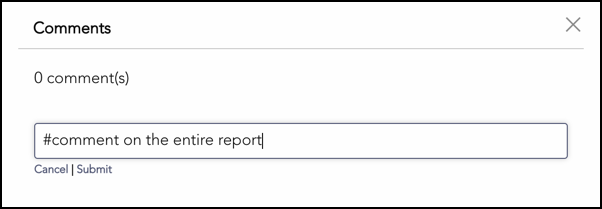
Adding a Comment
Click the Activity icon for a report to view all actions carried out on the report. The Activity panel records all the actions on a report along with the user and the timestamp for those actions. The actions recorded in the panel are:
Viewing a report
Commenting on a report
Commenting on a data row of a report
Flagging a report
Flagging a data row of a report
Changing the status of a report
Downloading a report
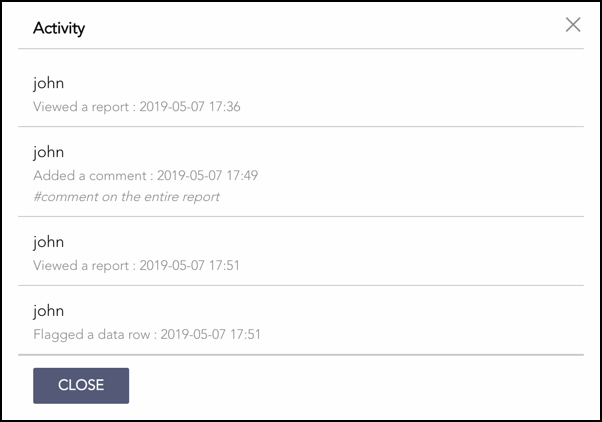
Activity Panel
Click the Send Email icon to send the report link via an email. Clicking the icon opens the email client with the report link. An AAHC user with User, Patient, or Report access can access the report via the link.
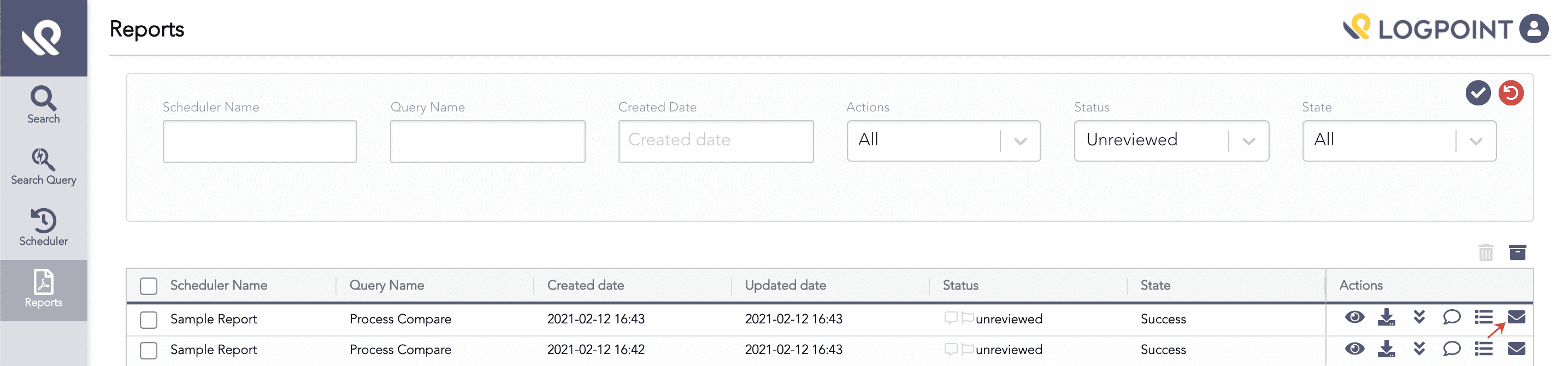
Email Report Link
Note
You can also send a report link for an individual data row of a report.
Click the Archive icon to archive the selected reports. You can select multiple reports and archive them in bulk.
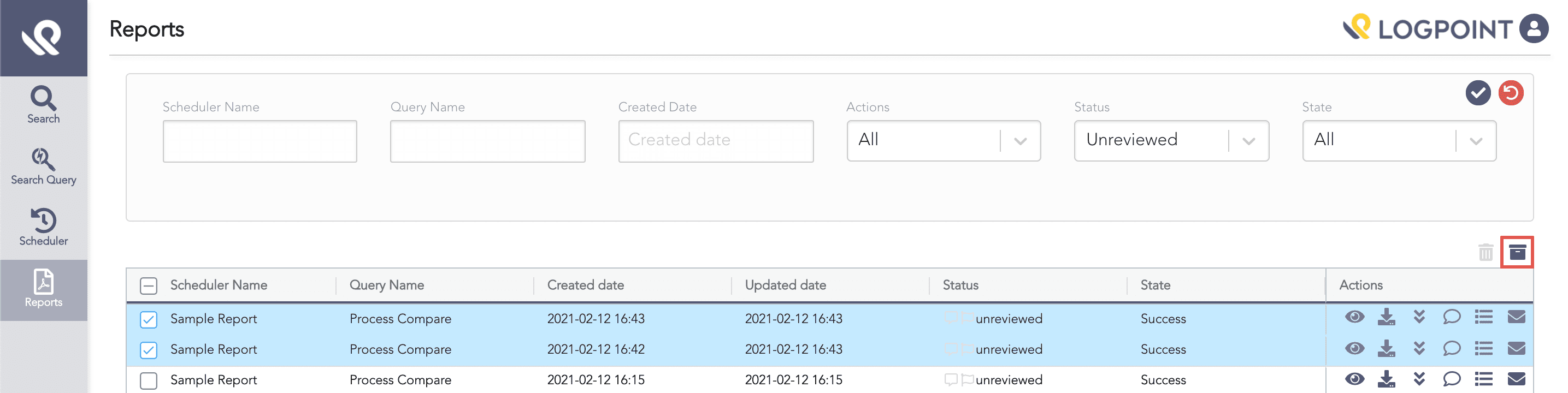
Archive
You can delete archived reports only.
You must have the Report Admin role to delete reports. To delete a report, make sure it is archived. Then, select the archived reports and click the Delete icon. Click Yes to confirm the deletion.
You can select multiple reports and delete them in bulk.
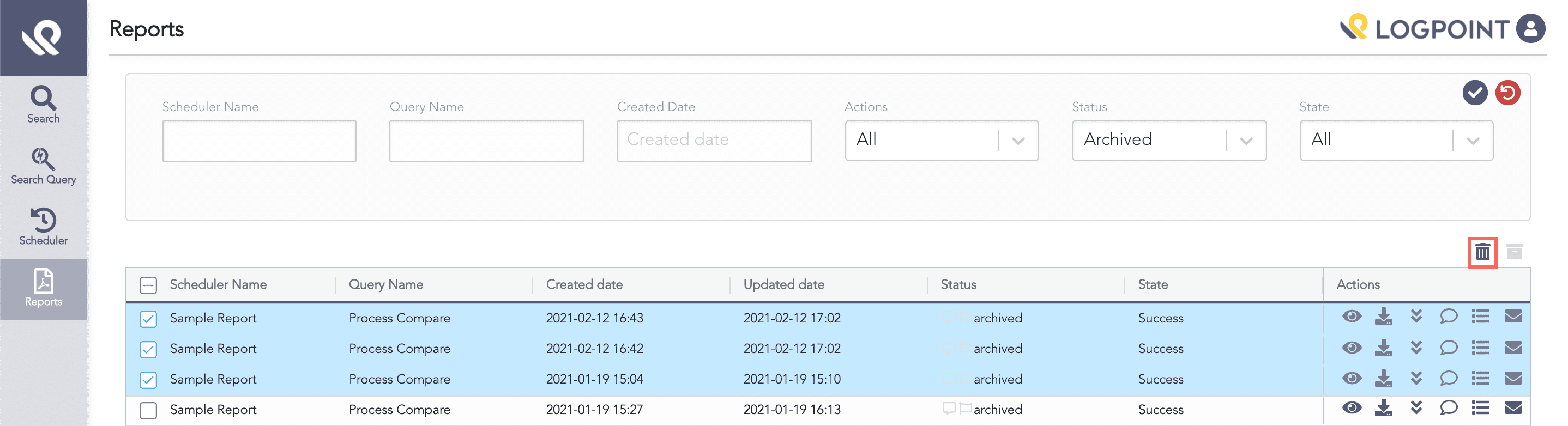
Delete Reports